
Quick Login for NCEdCloud by extensiondev41
Tired of manually and tediously typing in your credentials for your NCEdCloud login? Well extension solves exactly that! One‑click username+password autofill for NCEdCloud.
1 User1 User
Extension Metadata
Screenshots
About this extension
NC Quick Login fully automates signing into NCEdCloud through RapidIdentity. Save one or more accounts, pick which one to use, and log in with a single click: username, password, and both steps handled for you.
What's new in v1.0.1
• Multiple accounts — save, edit, delete, and switch between different logins
• Account picker — choose which saved account to use from the toolbar popup
• One-click full login — fills username, clicks Go, fills password, and submits automatically
• Quick access buttons — open NCEdCloud dashboard or manage accounts right from the popup
• Updated design — modern interface with your custom NC Quick Login branding
How to set up
1. Click the extension icon in your toolbar and open Settings (gear icon), or right-click the extension → Manage Extension → Preferences
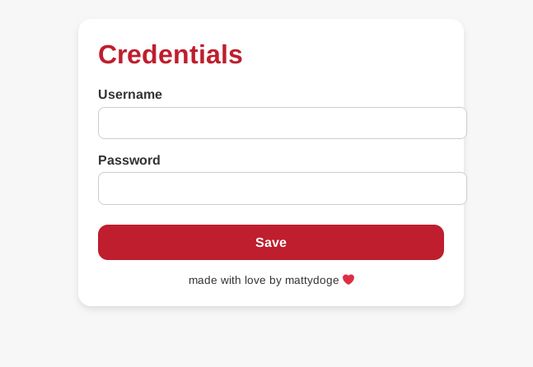
2. Add your NCEdCloud account(s): display name, username, and password
3. Click Save account for each one you want to store
4. Use Set active to choose your default account
How to log in
1. Go to the NCEdCloud login page (idp.ncedcloud.org) or click the Open NCEdCloud button in the popup to go straight to your dashboard
2. Click the extension icon in your toolbar
3. Select the account you want from the list
4. Click Auto-Login
Privacy: Your credentials are stored locally in your browser only. Nothing is sent to us or any third party.
What's new in v1.0.1
• Multiple accounts — save, edit, delete, and switch between different logins
• Account picker — choose which saved account to use from the toolbar popup
• One-click full login — fills username, clicks Go, fills password, and submits automatically
• Quick access buttons — open NCEdCloud dashboard or manage accounts right from the popup
• Updated design — modern interface with your custom NC Quick Login branding
How to set up
1. Click the extension icon in your toolbar and open Settings (gear icon), or right-click the extension → Manage Extension → Preferences
2. Add your NCEdCloud account(s): display name, username, and password
3. Click Save account for each one you want to store
4. Use Set active to choose your default account
How to log in
1. Go to the NCEdCloud login page (idp.ncedcloud.org) or click the Open NCEdCloud button in the popup to go straight to your dashboard
2. Click the extension icon in your toolbar
3. Select the account you want from the list
4. Click Auto-Login
Privacy: Your credentials are stored locally in your browser only. Nothing is sent to us or any third party.
Rated 5 by 1 reviewer
Permissions and data
Required permissions:
- Access browser tabs
- Access your data for idp.ncedcloud.org
Optional permissions:
- Access your data for idp.ncedcloud.org
More information
- Add-on Links
- Version
- 1.1.0
- Size
- 47.3 KB
- Last updated
- 3 months ago (Jul 1, 2026)
- Related Categories
- License
- Mozilla Public License 2.0
- Privacy Policy
- Read the privacy policy for this add-on
- Version History
- Add to collection