
screenshot any element troch vacantthinker
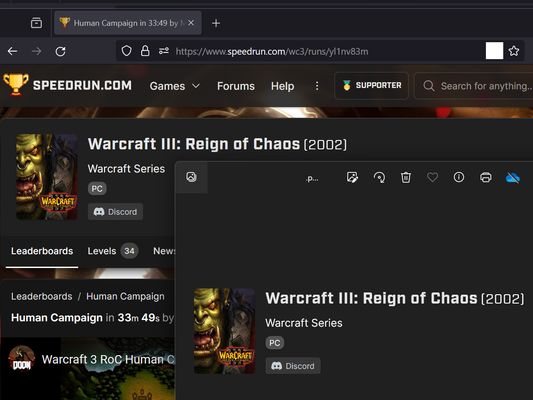
webpage screenshot support: screenshot full page pick one element to screenshot
32 brûkers32 brûkers
Metadata útwreiding
Skermôfbyldingen



Oer dizze útwreiding
Extension User Guide
📸 1. How to Capture a Full Page
🎯 2. How to Capture a Specific Element
⚠️ 3. Known Limitations
Browser extensions are restricted by standard security architectures and cannot run on native browser pages or official extension stores.
Examples of restricted pages include:
* Official Stores: Mozilla Add-ons Store (
📸 1. How to Capture a Full Page
- Right-click anywhere on the web page to open the context menu.
- Select "Screenshot Full Page" from the list.
🎯 2. How to Capture a Specific Element
- Click the extension icon in your browser toolbar.
- Move your mouse over the specific web element you want to capture. A red selection box will highlight the targeted area.
- Left-click the element. The extension will automatically capture the highlighted area and download it as a
.pngfile.
⏳ Note: Capturing larger web elements or extensive sections may take a few moments to process and download.
⚠️ 3. Known Limitations
Browser extensions are restricted by standard security architectures and cannot run on native browser pages or official extension stores.
Examples of restricted pages include:
* Official Stores: Mozilla Add-ons Store (
addons.mozilla.org).Wurdearre: 5 troch 2 beoardielers
Tastimmingen en gegevens
Fereaske machtigingen:
- Notifikaasjes werjaan
- Browserljepblêden benaderje
- Jo gegevens foar alle websites benaderje
Gegevenssamling:
- De ûntwikkeler seit dat dizze útwreiding gjin gegevenssamling fereasket.
Mear ynformaasje
- Add-on-keppelingen
- Ferzje
- 2026.5.30.1
- Grutte
- 12,11 KB
- Lêst bywurke
- 4 moannen lyn (30 mai 2026)
- Sibbe kategoryen
- Ferzjeskiednis
- Labels
- Tafoegje oan kolleksje