
Containers with Transitions 제작자: Matvey Soloviev
Fork of Multi-Account Containers that adds transition rules, which let you choose the container to open a page based on the opening container. It also adds other improvements to reduce papercuts and unwanted prompts.
사용자 50명사용자 50명
확장 메타 데이터
스크린샷
정보
This add-on is a fork of Multi-Account Containers that introduces container transition rules, as well as some opinionated changes aiming to reduce unwanted interaction experienced with the mainline add-on.
This add-on supersedes Multi-Account Containers. For best results, it is strongly recommended to avoid running both of them simultaneously.
Like the original, this add-on allows you to create a maintain a set of containers to compartmentalise your browsing experience. A good elevator pitch for this functionality is presented on the original add-on's page.
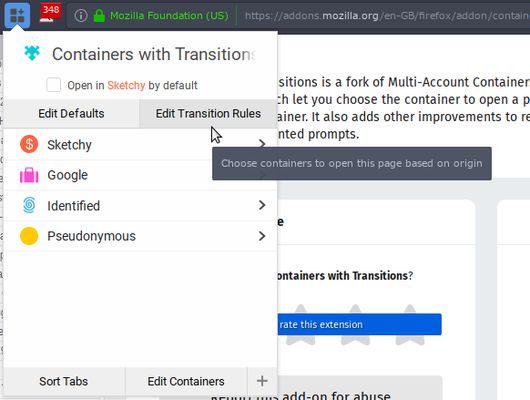
A container transition rule specifies what container to open pages from a given subdomain in depending on the container that they are opened from: so for instance, you could specify that all links to other websites opened from the Facebook container should be opened in a separate Clickbait container by default. You can specify both domain-specific rules and default rules, which are applied when no relevant specific rule exists.
Usage Examples
Other changes introduced relative to mainline Multi-Account Containers (as of 6.0.1):
Known issues:
This add-on supersedes Multi-Account Containers. For best results, it is strongly recommended to avoid running both of them simultaneously.
Like the original, this add-on allows you to create a maintain a set of containers to compartmentalise your browsing experience. A good elevator pitch for this functionality is presented on the original add-on's page.
A container transition rule specifies what container to open pages from a given subdomain in depending on the container that they are opened from: so for instance, you could specify that all links to other websites opened from the Facebook container should be opened in a separate Clickbait container by default. You can specify both domain-specific rules and default rules, which are applied when no relevant specific rule exists.
Usage Examples
- Suppose you want to open Google in its own container, but open all tabs opened from Google in the default (unmarked) container.
- In the add-on popup, click the + button in the bottom right to create a new container. Name it "Google", and assign it a colour and icon of your choice.
- In the same popup, the Google container should now appear in the list of containers. Create a new tab in that container by clicking it.
- Open www.google.com in this container.
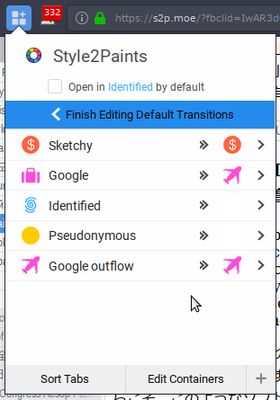
Optionally, tick "Open in Google by default" in the add-on popup. This will ensure that Google is always opened in this container when you navigate to it manually, or from the default container. - Click "Edit Default Rules". Next to each container in the list, a new column will appear (see screenshots). One of the rows will have the form ($) Google >> ($), where ($) is the icon you chose for your Google container.
- Click the >>($) part of this row. You will be taken to a new menu, in which you can choose the container that any new tabs from the Google container are to be opened in. Click the "Default container". You will return to the main view, in which the row should now have the form ($) Google >> (blank space).
- Suppose now you want images.google.com to be opened in the Google container when you click it on the main Google page.
- Navigate to images.google.com in any container.
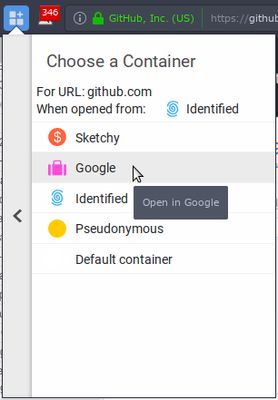
- Open the add-on popup, and click "Edit Domain Rules". Once again, the list of containers will show an additional column. Find the row of the form ($) Google >> (blank space) from earlier.
- Click the >> (blank space) part of the row, and select ($) Google from the list of containers. This determines the container to open images.google.com in when navigated to from inside the Google container.
- You will return to the previous menu, and the row in question should display as ($) Google >> ($) again.
Other changes introduced relative to mainline Multi-Account Containers (as of 6.0.1):
- When a page has been opened in a nonstandard container, opening pages on the same domain in a new tab by middle-click will not trigger a repeat confirmation screen. (Original PR)
- Containers with Transitions will attempt to intercept middle clicks within the website and open them in the right container straight away, instead of closing and reopening the new tab in the right container.
Known issues:
- "Open Link in New Container Tab" opens the link in the transition target associated with the tab chosen, rather than the tab chosen. Unfortunately, as far as I can tell, Firefox does not provide a way of distinguishing this event from an "Open in New Tab" issued from a tab in the chosen container. I'm considering workarounds based on tab hierarchy.
- Transition rules show up in raw form in the assigned page list when editing a container, and can't be edited. This will be fixed eventually.
리뷰어 19명이 4.8점으로 평가함
권한 및 데이터
추가 정보
- 부가 기능 링크
- 버전
- 1.0.6
- 크기
- 168.08 KB
- 최근 업데이트
- 6년 전 (2020년 5월 23일)
- 관련 카테고리
- 버전 목록
- 모음집에 추가