
InsertLearning Advanced 제작자: ĐÁNH BÀI ONLINE
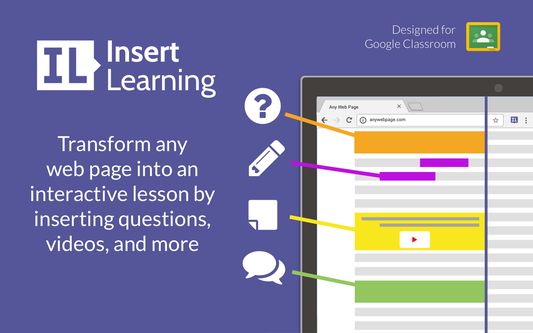
Insert instructional content on any web page
사용자 1명사용자 1명
확장 메타 데이터
스크린샷
정보
InsertLearning saves teachers and students time while keeping students engaged.
Teachers can insert questions, discussions, and insight directly into any website.
When students go to that website, they can respond to those questions and discussions, see that insight, and take their own notes.
Use InsertLearning to turn any website into an interactive learning experience!
Here are some tips on how to use InsertLearning:
Teachers can insert questions, discussions, and insight directly into any website.
When students go to that website, they can respond to those questions and discussions, see that insight, and take their own notes.
Use InsertLearning to turn any website into an interactive learning experience!
Here are some tips on how to use InsertLearning:
- Click on our extension button to make our toolbar appear. This button has our logo and is located at the top right of your window.
- To insert a question, click on the question icon on our toolbar and then click on a paragraph. Inserting a question within an article is a good way to assess what your students are learning as they read.
- To insert a video, the first step is to insert a sticky note. To do so, click on the sticky note icon on our toolbar and then click on a paragraph. After inserting a sticky note, either paste in a YouTube link or an embed code from another video provider. Inserting a video is a good way to address different learning styles in your classroom.
- As the previous tip suggests, you can also insert other interactive items with sticky notes by pasting in an embed code. Again, interactive items are a good way to address different learning styles.
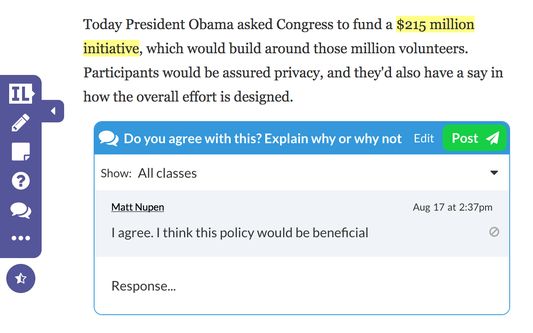
- To insert a discussion, click on the discussion icon on our toolbar (looks like two speech bubbles) and then click on a paragraph. Inserting a discussion is a good way to have students learn from each other.
- To highlight text, click on the highlight icon on our toolbar (some people think it looks like a pencil) and then select the text you want to highlight. You can add a comment to a highlight by clicking on the plus that appears when you first make a highlight or whenever you click on the highlight. Similarly, you can change the color of a highlight by clicking on the paint brush that appears when you first make a highlight or whenever you click on the highlight.
- Students can also highlight text and insert sticky notes. Having them annotate like this can be a good way to assess what they are learning. If there are student annotations available to view, a button will appear at the top left of your screen with an icon that looks like a group of people. Click on this button and then select a student to view their annotations. When you have a student selected, you'll even see what they annotate in real time.
- To assign your lesson to a class, click on a our logo on our toolbar and then click on the class you want your lesson assigned to. Once your lesson is assigned to a class, every student enrolled in that class will be able to see the things your inserted into the article.
- During the assigning process, you can choose to share your lesson to Google Classroom. Below the list of your classes, is a button that says "Share to Google Classroom." Click on that button, select the classes from Google Classroom you wish to share to, and then click the button that says "Share to these classes." After doing this, a link to your lesson will appear in Google Classroom. Also, if you haven't already imported your class, this process will import your roster from Google Classroom into InsertLearning.
리뷰어 0명이 0점으로 평가함
권한 및 데이터
필수 권한:
- 탐색 중 브라우저 활동에 접근
- docentedu.com에서 사용자의 데이터에 접근
- insertlearning.com에서 사용자의 데이터에 접근
- www.okeebo.com에서 사용자의 데이터에 접근
추가 정보
- 부가 기능 링크
- 버전
- 2.2.0
- 크기
- 303.39 KB
- 최근 업데이트
- 2년 전 (2025년 2월 21일)
- 관련 카테고리
- 라이선스
- All Rights Reserved
- 버전 목록
- 모음집에 추가