Take Youtube Video Screenshots (+ GIF Maker) 제작자: znwyrz
How to use - Download File : Left Click on Button - Download File with Prompt : Alt/Option + Left Click on Button - Copy to Clipboard : Shift + Left Click on Button - Selecting the Capture Area: Ctrl/Command + Left Click on Button
사용자 594명사용자 594명
확장 메타 데이터
스크린샷
정보
A toolbar button for easier take youtube video screenshots.
How to use
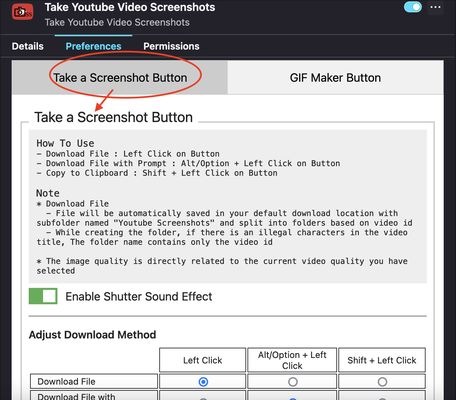
- Download File : Left Click on Button
- Download File with Prompt : Alt/Option + Left Click on Button
- Copy to Clipboard : Shift + Left Click on Button
- Selecting the Capture Area: Ctrl/Command + Left Click on Button
* For "Selecting the Capture Area" when rotating video or entering and exiting fullscreen mode, you should close the selection box first and open it again. Due to changes in the size of the video and the player, the previous code specifying the size of the area that can be dragged must be changed
* "Download File" / "Download File with Prompt" / "Copy to Clipboard" can be done on the capture button of "Selecting the Capture Area" with the same shortcuts
* Shutter sound can be disabled in the add-on Preferences
* Download Method can be adjust in the add-on Prefereces
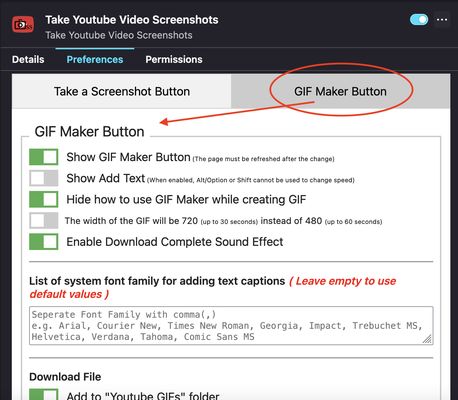
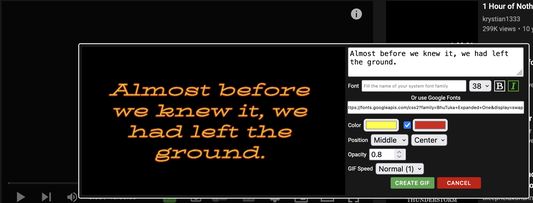
* Added "GIF Maker" button to create simple GIFs
Note
* Download File
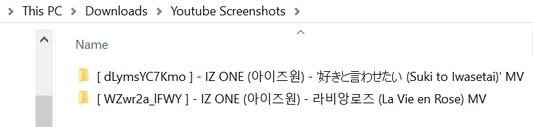
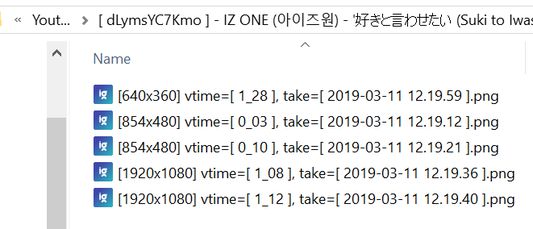
- File will be automatically saved in your default download location with subfolder named "Youtube Screenshots" and split into folders based on video id
- While creating the folder, if there is an illegal characters in the video title, The folder name contains only the video id
How to use
- Download File : Left Click on Button
- Download File with Prompt : Alt/Option + Left Click on Button
- Copy to Clipboard : Shift + Left Click on Button
- Selecting the Capture Area: Ctrl/Command + Left Click on Button
* For "Selecting the Capture Area" when rotating video or entering and exiting fullscreen mode, you should close the selection box first and open it again. Due to changes in the size of the video and the player, the previous code specifying the size of the area that can be dragged must be changed
* "Download File" / "Download File with Prompt" / "Copy to Clipboard" can be done on the capture button of "Selecting the Capture Area" with the same shortcuts
* Shutter sound can be disabled in the add-on Preferences
* Download Method can be adjust in the add-on Prefereces
* Added "GIF Maker" button to create simple GIFs
Note
* Download File
- File will be automatically saved in your default download location with subfolder named "Youtube Screenshots" and split into folders based on video id
- While creating the folder, if there is an illegal characters in the video title, The folder name contains only the video id
- The image quality is directly related to the current video quality you have selected
If you want to create MPC-like "Save Thumbnails", try <a href="https://addons.mozilla.org/en-US/firefox/addon/youtube-storyboard/" target="_blank">this</a> add-on.
38명이 4.6점으로 평가함
권한 및 데이터
필수 권한:
- 파일을 다운로드하고 브라우저의 다운로드 기록을 읽고 수정
- 확장 기능 사용 확인과 테마 관리
- 브라우저 탭에 접근
- www.youtube.com에서 사용자의 데이터에 접근
선택적 권한:
- www.youtube.com에서 사용자의 데이터에 접근
추가 정보
- 부가 기능 링크
- 버전
- 3.0.6.0
- 크기
- 272.03 KB
- 마지막 업데이트
- 7달 전 (2025년 10월 14일)
- 버전 목록
- 모음집에 추가